
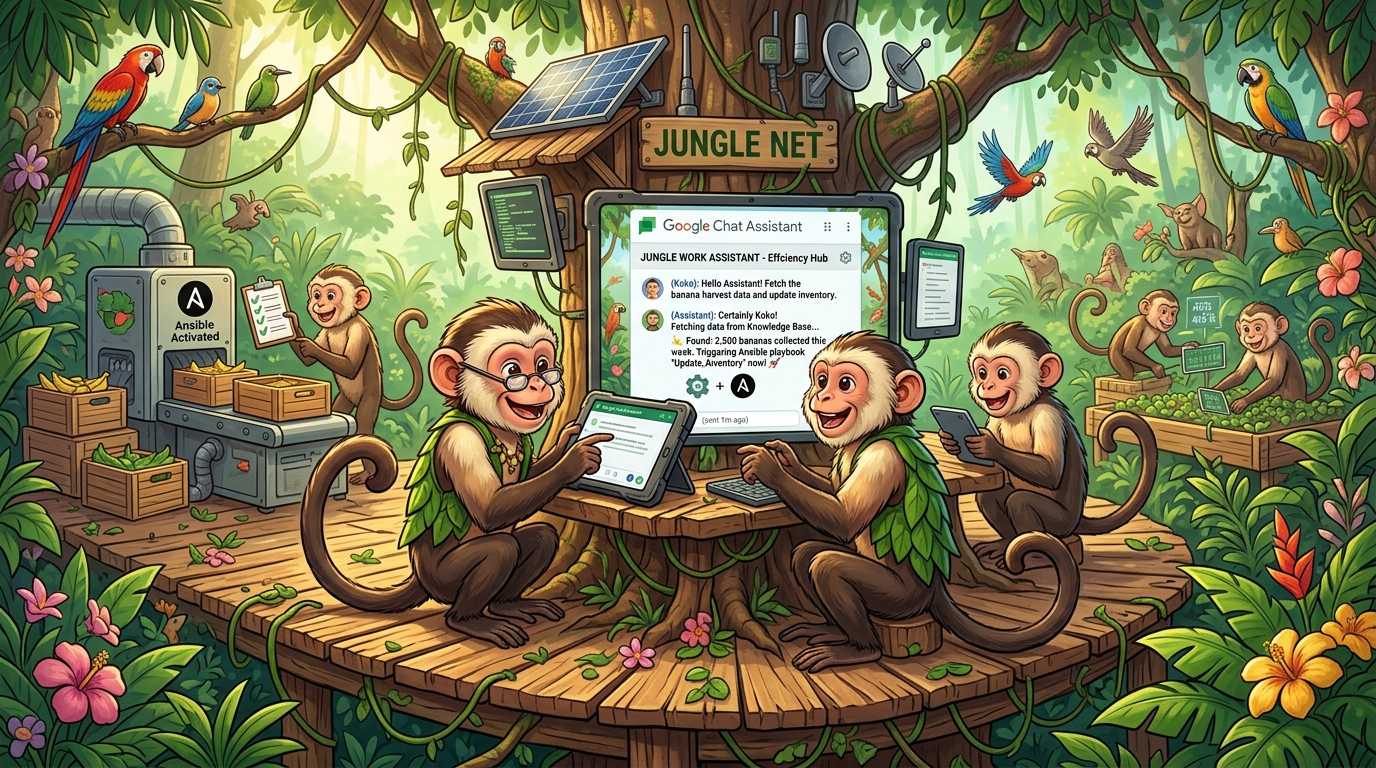
Every company has that one problem: knowledge scattered across wikis, Drive folders, email threads, and the heads of people who have been around long enough to remember. Employees waste hours searching for the right document, only to find out they don’t even have access to the folder it lives in. We decided to fix that during a hackathon, and what started as a weekend experiment turned into a production grade AI personal assistant that lives inside Google Chat.
In this article we are talking about how we built Google Chat Based AI Personal Assistant, a permission-aware AI chatbot that answers questions from company knowledge bases, runs Ansible automation, delivers morning briefings, and even handles HR phone interview scheduling. We will walk through the full journey: the spark of the idea, the architecture decisions, the Google AI stack that powers it, and the security model that keeps sensitive data locked down.
The Spark: Why We Built This
The idea came from a simple frustration. Our team was spending too much time answering the same questions repeatedly. “Where is the VPN setup guide?” “How do I request AWS access?” “What’s the process for onboarding a new hire?” “Where can I find our Security Policies?” The answers existed somewhere, but finding them required knowing which wiki page, which Drive folder, or which Google Chat space to look in.
During a hackathon, we asked ourselves: what if we could build a chatbot that sits right inside Google Chat (where everyone already works), understands natural language questions, and pulls answers from our actual knowledge base? But here is the critical part: not everyone should see everything. The finance team’s documents should stay private to finance. Security runbooks should only be visible to the security team.
That constraint, permission-aware retrieval, shaped every architectural decision that followed.
Turning the Idea into a Working POC
We had 48 hours. The plan was simple: get a message from Google Chat, pass it through an LLM, and return a useful answer. But “simple” gets complicated fast when you add real-world requirements like authentication, access control, and conversation memory.
The Minimum Viable Architecture
We started with three core components:
- A Flask app on Cloud Run to receive Google Chat webhooks.
- Gemini 2.0 Flash for natural language understanding and response generation.
- Vertex AI RAG Engine to store and retrieve company documents.
The first working version could answer basic questions from a single knowledge base corpus. No access control, no memory, no fancy features. Just: ask a question, get an answer with source citations. That was enough to prove the concept worked.
From there, we iterated. Each phase added one major capability: access control, conversation memory, tool plugins, morning summaries, an admin portal, and external wiki sync.
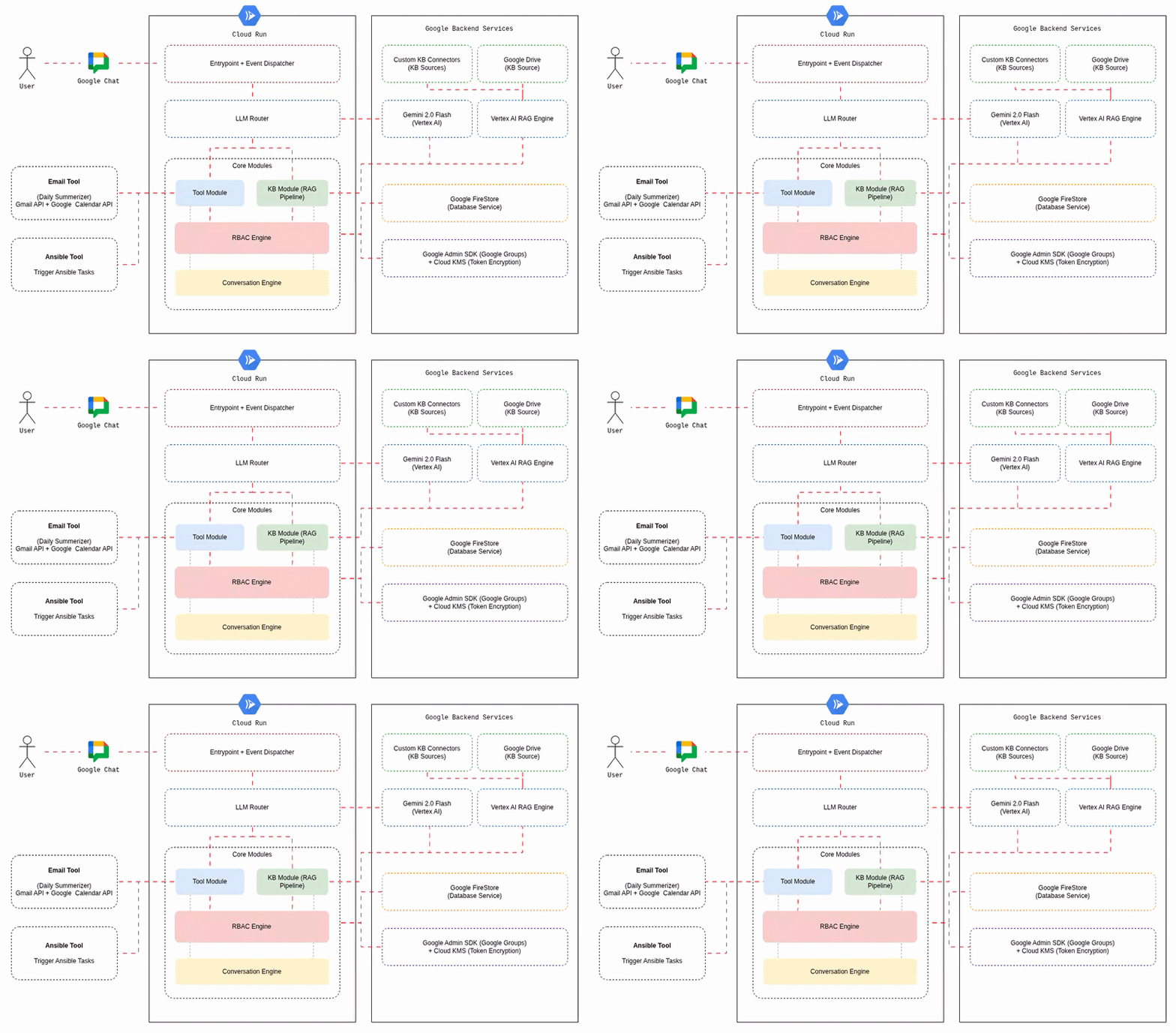
The Google AI Stack: What Powers the AI Chat Assistant
We went all-in on Google Cloud’s AI services. Here is what we used and why.
Gemini 2.0 Flash via Vertex AI
Gemini 2.0 Flash is the LLM at the heart of the Chat Assistant. We chose it for three reasons: speed (Flash is fast enough for real-time chat), the 1M token context window (we use about 700K of it), and native multimodal support (more on that later).
We use Gemini for six different tasks:
- Intent classification: detecting whether a message is a KB question, an action request, or casual chat.
- KB answer synthesis: generating answers with inline citations from retrieved documents.
- Conversation summarization: compressing old messages into rolling summaries.
- Email categorization: organizing daily briefing emails by urgency.
- Voice transcription: transcribing audio messages directly from Google Chat.
- Auto-reply generation: drafting email responses matching the user’s writing style.
One LLM, six use cases. The key is in the system prompts and the context you feed it.
Vertex AI RAG Engine
Instead of building a custom RAG pipeline with vector databases and embedding models, we used Vertex AI RAG Engine. It handles chunking, embedding, and retrieval out of the box. We just feed it documents and query it.
We created four separate corpora (collections of documents - for the POC), each mapped to a permission level:
general → everyone can accesssecurity → security team onlyfinance → finance + managementdevelopment → developers + security + managementWhen a user asks a question, ChatBot resolves which corpora they can access based on their Google Groups membership, then queries only those corpora. A finance team member asking about budget forecasts gets results from both general and finance. A developer asking the same question only sees general. The LLM never sees documents the user should not have access to.
Firestore: The State Engine
Firestore is the backbone for all state management. We use 13+ collections for everything from conversation history to RBAC mappings to error logs. Firestore’s transactional writes are critical for conversation indexing. When two messages arrive at roughly the same time (which happens with Cloud Run autoscaling), transactions ensure we don’t corrupt the message order.
Cloud KMS: Token Encryption
Every user token (OAuth credentials, AWX (Ansible) session cookies) is encrypted at rest using Cloud KMS before being stored in Firestore. The encryption flow looks like this:
# Encrypt token with Cloud KMS before storingplaintext = json.dumps(token_data).encode('utf-8')client = kms.KeyManagementServiceClient()response = client.encrypt( request={ "name": "projects/.../keyRings/<your-keyring>/cryptoKeys/oauth-tokens", "plaintext": plaintext, })# Store only the ciphertext in Firestoredb.collection("oauth_tokens").document(user_email).set({ "ciphertext": response.ciphertext, "timestamp": server_timestamp(),})Even if someone gains read access to Firestore, they cannot decrypt the tokens without Cloud KMS permissions. Defense in depth. Consider implementing KMS key version tracking for rotation, adding error handling around the encrypt call to prevent fallback to plaintext storage, using set(merge=True) to avoid overwriting existing document fields, ensuring decrypted tokens remain in-memory only, and tightly scoping IAM permissions to the specific service account.
Message Flow: How a User Query Gets Processed
Let’s walk through what happens when a user sends a message to the ChatBot in Google Chat.
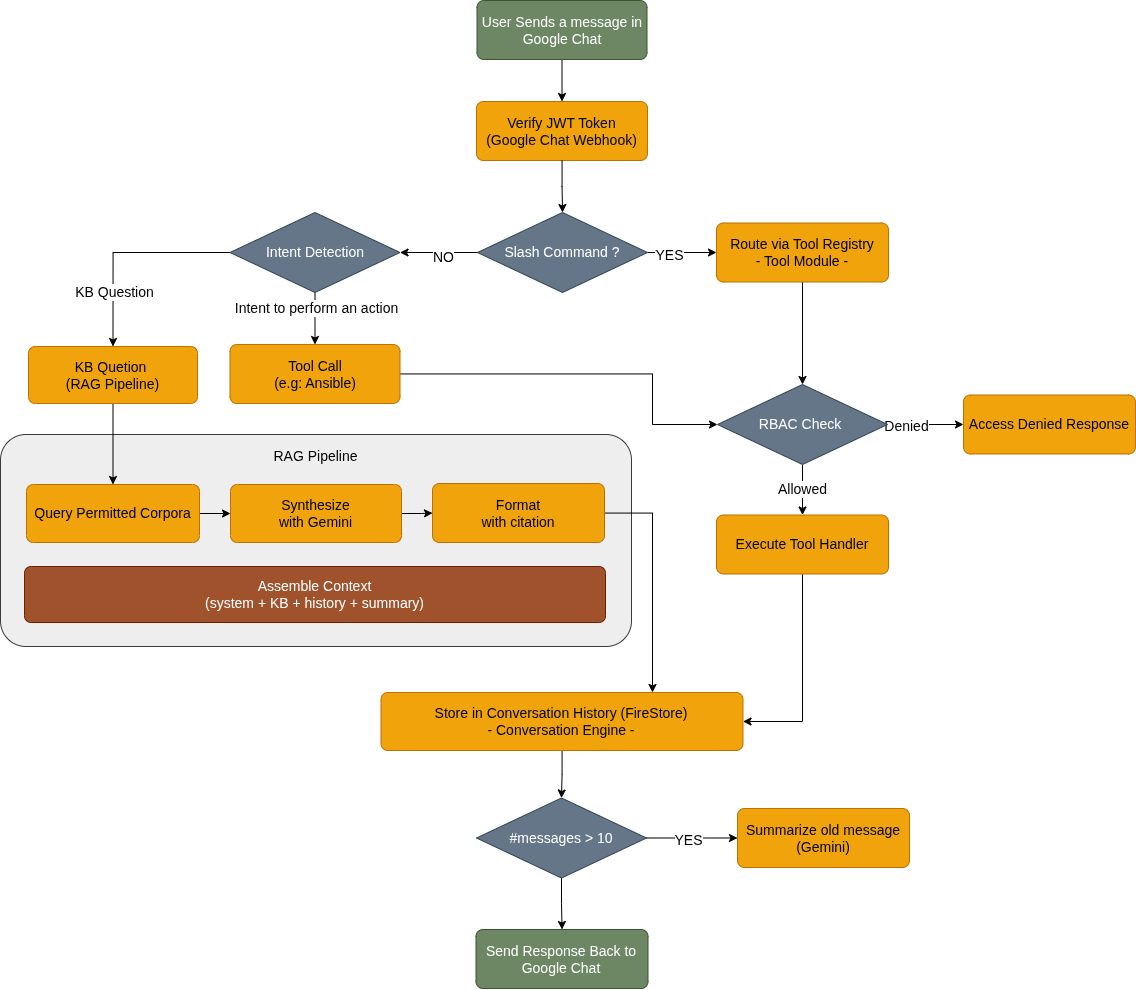
Step 1: JWT Verification
Every incoming webhook from Google Chat includes a JWT token. Chatbot verifies this token to confirm the request actually comes from Google Chat, not from someone trying to spoof the webhook endpoint. This is the first line of defense.
Step 2: Event Dispatch
The handler checks what kind of event this is. A new message? A slash command? A card button click? Each gets routed differently:
def dispatch_event(event, db): event_type = event.get("type")
if event_type == "MESSAGE": # Check slash commands first if "slashCommand" in event.get("message", {}): return route_command(event, db) # Then natural language intent detection return classify_and_route(event, db)
elif event_type == "CARD_CLICKED": action = event["action"]["actionMethodName"] tool, action = registry.route_card_action(action) return tool.handle_card_action(action, event, db)Step 3: Intent Detection and RBAC
For natural language messages, ChatBot detects intent: is this a KB question, an action request (e.g: calling Ansible playbook), or just casual chat? For tool-based actions, it checks whether the user has access via Google Groups before executing anything.
Step 4: RAG Pipeline (for KB Questions)
This is where the magic happens. The pipeline:
- Query permitted corpora: Check which corpora this user can access, and run the query against Vertex AI RAG
- Synthesize with Gemini: generate an answer with inline citations
- Format response: build a Google Chat Cards v2 response with source links
Step 5: Store and Summarize
Every exchange (user message + bot response) gets stored in Firestore. When the conversation exceeds 10 messages, Chatbot triggers a summarization: Gemini compresses the old messages into a concise summary, and the originals get cleaned up.
Security: Three Layers of Access Control
Security was not an afterthought. We designed a three-layer RBAC model that gates access at every level.
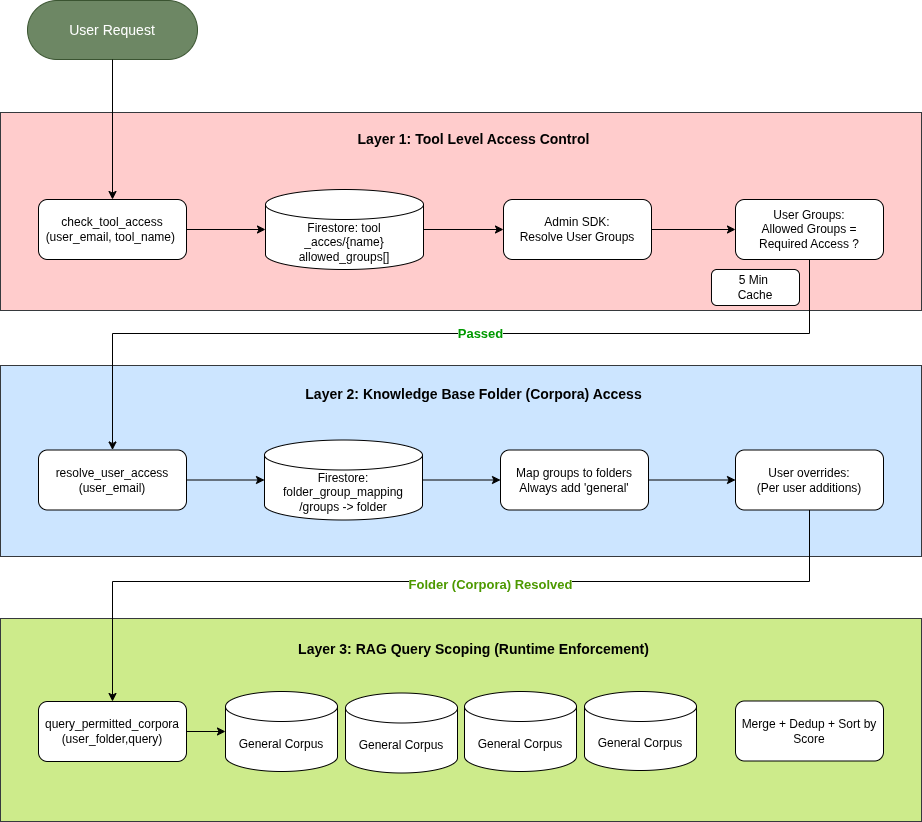
Layer 1: Tool-Level Access
Before a user can use any tool (Ansible, etc.), Chatbot checks the tool_access collection in Firestore. Each tool has an allowed_groups list. The user’s Google Groups are resolved via the Admin SDK (with domain-wide delegation), and the intersection determines access.
Layer 2: KB Folder Access
For knowledge base queries, ChatBot resolves which document folders the user can see. This mapping lives in Firestore’s folder_group_mappings collection. Every user always gets access to general. Additional folders are granted based on group membership, with optional per-user overrides managed through the admin portal.
Layer 3: RAG Query Scoping
This is where the enforcement actually happens at query time. When ChatBot calls Vertex AI RAG, it only queries the corpora that map to the user’s accessible folders. The LLM never sees documents from restricted corpora. This is a clean permission boundary, not a filter-after-retrieval approach.
Google Groups as the Identity Source
We chose Google Groups as the identity backbone because every employee already has group memberships managed by IT. No separate RBAC database to maintain. The integration uses domain-wide delegation: a service account impersonates a Workspace admin to call the Admin SDK Directory API. No stored admin passwords, just IAM trust chains.
The group resolution result gets cached for 5 minutes to avoid hammering the Admin SDK on every request.
Making It Extensible: The Plugin Architecture
We knew from day one that this chatbot would need to do more than answer questions. So we built a tool plugin system that lets us add new capabilities without touching the core routing logic.
How It Works
Every tool extends a BaseTool class:
class BaseTool: name: str # "ansible" command_id: int | None # Slash command ID display_name: str # "Ansible" card_action_prefix: str # "ansible_" required_groups: list[str] # RBAC groups
def handle_command(self, event, db) -> dict: ... def handle_card_action(self, action, event, db) -> dict: ... def get_flask_routes(self) -> list[tuple] | None: ...Tools register themselves in a ToolRegistry that maps command IDs, card action prefixes, and Flask routes. When a slash command comes in, the registry looks up the right tool. When a card button is clicked, the prefix routing finds the matching handler.
The Ansible Tool: A Real Example
The Ansible (AWX) tool lets users trigger Ansible (AWX) job templates directly from Google Chat. Here is the flow:
- User types
/ansible connectand gets redirected to an LDAP login form - Credentials are exchanged for AWX session cookies (both
sessionidandcsrftoken) - Cookies get encrypted with Cloud KMS and stored in Firestore
- User browses available job templates via interactive cards
- Survey variables are fetched from AWX’s
/survey_spec/endpoint - User fills in parameters and submits. ChatBot launches the job and returns a link
The whole interaction happens through Google Chat Cards v2, so it feels native. No context switching to a separate UI.
Context Management: Making It Feel Like a Conversation
A chatbot that forgets what you said two messages ago is frustrating. We invested significant effort in conversation context management.
The Token Budget
Gemini 2.0 Flash has a 1M token context window. We allocate 700K tokens (70%) for the conversation context, structured by priority:
- System prompt (highest priority, always included)
- KB retrieval results (RAG chunks with source metadata)
- Recent messages (last 10 messages in full)
- Rolling summary (compressed history of older messages)
If the KB results are large, we trim the conversation history first. If the conversation is short, we include the full summary. The allocation algorithm ensures the most relevant context always fits.
Sliding Window + Summarization
When a conversation grows beyond 10 messages, the sliding window kicks in:
- Messages 1 through N-10 get sent to Gemini for summarization
- Gemini produces a concise paragraph capturing the key topics and context
- The summary replaces the old messages in Firestore
- Future requests include: summary + last 10 messages
This gives the ChatBot a “long-term memory” without burning through the token budget. A user can have a 50-message conversation and ChatBot still remembers the topic they started with, because it’s captured in the rolling summary.
Personalized Responses
Context management enables personalization. Since ChatBot knows the conversation history, it can:
- Avoid repeating information it already provided
- Follow up on previous topics naturally (“As I mentioned earlier about the VPN setup…”)
- Understand pronouns and references (“Can you tell me more about that?”)
- Adapt its answers based on the user’s role (resolved via RBAC groups)
Beyond Q&A: Morning Summaries and Email Triage
This ChatBot (The AI Based Assistant) is not just a question-answering machine. Two features stood out as the most valuable to daily users.
Morning Briefings
Every morning, Cloud Scheduler triggers the ChatBot backend service to compile a personalized briefing for each user. It pulls data from three sources in parallel:
- Gmail: unread emails from the last 24 hours, categorized as URGENT, MEETING_UPDATES, or FYI
- Calendar: today’s meetings with times and attendees
- Tasks: overdue and due-today items from Google Tasks
Gemini categorizes the emails and detects themes. If three emails are about the same project, they get grouped into a single summary instead of listed individually. The briefing arrives as a Cards v2 DM in Google Chat before the user’s first meeting.
Email Auto-Reply
For users who opt in, this AI Based Assistant can draft and send email replies automatically. The pipeline:
- Fetch unread emails from internal senders
- Classify with Gemini: does this need a reply?
- Generate a reply that matches the user’s writing style (few-shot examples)
- Send via Gmail API and track in Firestore
This requires per-user OAuth consent (we use PKCE flow), so each user explicitly authorizes ChatBot to access their Gmail and Calendar.
Voice Message Transcription
Here is a fun one. Google Chat supports voice messages, but they arrive as audio attachments. We pass the audio directly to Gemini (which handles multimodal input natively) with the prompt “Transcribe this voice message exactly.” No separate speech-to-text service needed. The transcribed text then flows through the normal message pipeline.
Deployment: Cloud Run and Terraform
The entire infrastructure is defined in Terraform and deployed via a custom script.
The Deploy Script
We learned early that gcloud run deploy --source has limitations with custom build contexts. So we built a dedicated deploy.sh that:
- Builds the Docker image locally
- Pushes to Artifact Registry
- Deploys to Cloud Run with all environment variables
The Dockerfile is minimal: Python 3.11-slim, pip install requirements, and Gunicorn with 1 worker and 2 threads. Cloud Run handles scaling (0 to 2 instances), so we don’t need multiple Gunicorn workers.
Infrastructure as Code
Terraform provisions everything:
- Cloud Run service + IAM bindings
- Firestore database + composite indexes
- Cloud KMS key ring and crypto keys
- Three service accounts (chatbot, workspace delegation, scheduler)
- Cloud Scheduler cron jobs for morning summaries and wiki sync
- Vertex AI RAG corpora
This means the entire system can be torn down and recreated from scratch in minutes.
The Admin Portal
Giving non-technical stakeholders visibility into the system was important. We built a lightweight admin portal as a Flask Blueprint served from the same Cloud Run instance.
The portal lets admins:
- View and edit folder-to-group mappings (RBAC configuration)
- Search any user’s resolved access (see exactly what they can reach)
- Add per-user folder overrides
- Browse files in each RAG corpus
- View Drive sync and Custom KB sync history
- Manually trigger knowledge base re-indexing
We initially planned Google OAuth for the admin login, but PKCE flow had issues with Cloud Run’s URL structure. We switched to simple username/password authentication with SHA256-hashed passwords. Sometimes the pragmatic solution wins over the elegant one.
Key Considerations
What Worked Well
-
Vertex AI RAG Engine saved us weeks of work. No custom vector database, no embedding pipeline, no chunk-size tuning. We fed it documents and it just worked.
-
The plugin architecture paid off immediately. Adding the Ansible tool and HR tool took days instead of weeks because the core framework handled routing, RBAC, and card rendering.
-
Google Groups as RBAC source eliminated an entire category of user management. When IT adds someone to a group, their chatbot permissions update automatically within 5 minutes.
What We Would Do Differently
Intent detection currently uses a chain of heuristic checks (regex patterns, keyword matching). This gets brittle as we add more tools. We are planning to replace it with a single LLM router call: send the message to Gemini with all available tool descriptions, and let it return which tool should handle it.
The conversation summarizer sometimes loses important details when compressing. We are exploring a hybrid approach: keep a structured key-value store of important facts alongside the narrative summary.
Testing external integrations (Ansible, Gmail, Calendar) requires extensive mocking. We would invest in a better integration testing setup earlier next time.
Performance
Response times are dominated by two factors: Gemini inference and RAG retrieval. A typical KB question takes 2 to 4 seconds end-to-end. Slash commands that don’t need LLM calls respond in under 500ms. The 5-minute access cache is critical. Without it, every request would add an Admin SDK call, roughly 200ms of latency.
How You Can Build Something Similar
If this inspired you to build your own AI assistant, here is a practical roadmap.
Start Small
- Set up a Google Chat bot with a Cloud Run webhook. Google’s documentation walks you through the basics.
- Add Gemini via the
google.genaiclient library. Start with simple question-answering. - Add Vertex AI RAG with a single corpus. Upload a few documents and query them.
That is your MVP. Everything else is iteration.
Add Access Control Early
Do not bolt on security later. Design your permission model before you have too many features to retrofit. Google Groups + Firestore mappings is a pattern that scales well for most organizations.
Use Cards v2
Plain text responses work, but Google Chat Cards v2 make your bot feel professional. Collapsible sections for long answers, buttons for actions, and formatted tables for structured data.
Keep Context Simple
Start with a fixed window (last N messages). Add summarization only when users complain about the bot “forgetting.” Over-engineering context management early leads to complexity you don’t need yet.
Think About Secrets
If your bot touches any user credentials (OAuth tokens, API keys, session cookies), encrypt them with Cloud KMS from day one. It takes 20 lines of code and eliminates an entire class of security risks.
Conclusion
The combination of Gemini’s language understanding, Vertex AI’s managed RAG pipeline, and Google Chat’s rich card UI creates an experience that feels natural and useful.
The most important lesson: permission-aware AI is not optional for enterprise use cases. The moment you connect an LLM to company data, access control becomes a first-class concern. Our three-layer RBAC model (tool access, folder access, RAG query scoping) ensures that the AI never leaks information across permission boundaries.
If you are thinking about building something similar for your organization, start with the smallest useful version and iterate. The Google Cloud AI stack makes it surprisingly approachable to build production-grade AI assistants, even during a hackathon.
References
- Google Chat API - Bot Development: https://developers.google.com/chat
- Vertex AI RAG Engine: https://cloud.google.com/vertex-ai/docs/generative-ai/rag-overview
- Gemini 2.0 Flash: https://cloud.google.com/vertex-ai/docs/generative-ai/model-reference/gemini
- Cloud Run Documentation: https://cloud.google.com/run/docs
- Cloud KMS Documentation: https://cloud.google.com/kms/docs
- Google Workspace Admin SDK: https://developers.google.com/admin-sdk
Cheers!